General News
Blooket Host: How to Host, Join, and Play Games
Blooket Host allows teachers, educators, and other users to create and manage live educational games using interactive quizzes.

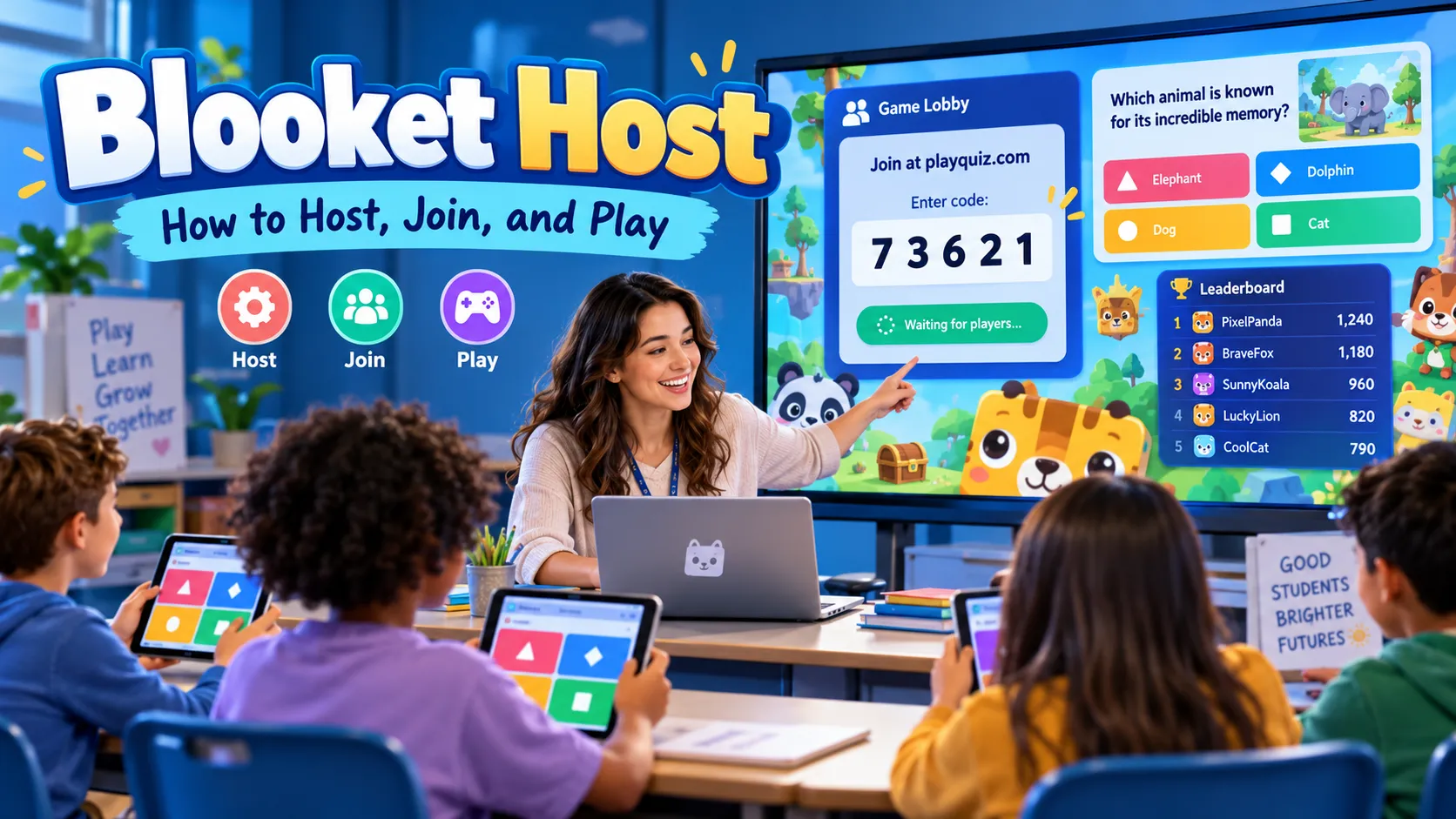
Blooket Host allows teachers, educators, and other users to create and manage live educational games using interactive quizzes. To host a Blooket game, sign in to your account, select a question set, choose a game mode, adjust the settings, and share the generated game code with participants.
Students can join through the official Blooket Play website without creating an account. They simply enter the host’s game code, choose a nickname and Blook character, and participate when the host starts the session.
Blooket combines quiz-based learning with game mechanics such as competition, strategy, rewards, and leaderboards. Instead of simply answering questions on a worksheet, participants use their knowledge to advance through different game modes.
This guide explains how to host and join Blooket games in 2026, access the dashboard, create question sets, choose game modes, review results, and avoid common technical and security problems.
What Is Blooket and How Does It Work?
Blooket is an online educational gaming platform that turns question sets into interactive learning activities. Teachers can create original questions or select existing sets covering subjects such as mathematics, science, history, geography, and language arts.
The platform separates educational content from the game experience. A single question set can support different game modes, allowing educators to reuse the same material without repeating exactly the same activity.
For example, a teacher reviewing multiplication might use a question set containing basic arithmetic problems. Students could answer those questions in Classic mode, where accuracy and speed influence scores, or in Gold Quest, where correct answers allow players to collect and compete for virtual gold.
The fundamental process involves three elements:
- Question sets: Collections of questions and answers covering a particular subject.
- Game modes: Different styles of gameplay that use those questions.
- Hosting sessions: Live activities in which a host manages the game and participants join using individual devices.
Blooket also supports individual practice and homework assignments, so it is not limited to simultaneous classroom competitions.
How to Blooket Host a Live Game: Step-by-Step Guide
Hosting a Blooket Game requires an account, a question set, an internet-connected computer, and participants with their own compatible devices. The host controls the shared game session while players answer questions and interact with their selected mode.
According to the official Blooket hosting instructions, the hosting process follows these steps:
- Visit Blooket: Open the official Blooket website and sign in. New hosts can register for a free Starter account.
- Choose a question set: Navigate to My Sets to use your own questions or select Discover to find a publicly available set.
- Review the content: Open the question set preview and select Show Answers to check the questions and their correct responses.
- Select Host: Click the Host option associated with your chosen question set.
- Choose a game mode: Browse the available live game modes and select one appropriate for your audience and lesson.
- Configure the game: Adjust options such as duration, goals, question order, random names, and late joining, depending on the selected mode.
- Click Host Now: Blooket creates a live game lobby with a Game ID, QR code, and joining link.
- Invite participants: Share the Blooket Code or display the joining information on a classroom screen.
- Start playing: Confirm that the intended participants have entered the lobby, then click Start.
The host should normally display the game screen on a projector or share it through an online meeting platform. Participants use their own devices to join and play.
Important Hosting Settings Explained
Blooket provides several options for controlling how a live session operates. Available settings differ between game modes.
| Hosting setting | What it does |
|---|---|
| Time | Ends a game after a selected duration |
| Goal | Ends a session when a specified score or objective is reached |
| Question Ordering | Chooses random, original, or mastery-focused question presentation |
| Allow Late Joining | Controls whether players can enter after the game begins |
| Use Random Names | Assigns automatically generated player names |
| Show Answer Correctness | Displays correct answers after incorrect responses |
| Time Penalty | Adds a waiting period after incorrect answers |
| Mute Player Sounds | Controls gameplay sound effects across participants |
| Banned Blooks | Restricts selected Blook characters |
For classroom review, question ordering can be particularly useful. Blooket’s Mastery setting presents previously missed questions more frequently, helping students revisit difficult material.
Hosts should review these settings before beginning rather than assuming every game mode uses the same defaults.
Blooket Join: How Students Can Enter a Live Game
The Blooket Join process is designed to be simple. Students do not need to create accounts to participate in a teacher-hosted live game.
There are three official ways to Join Blooket:
Using a game code: Visit Blooket Play, enter the seven-digit Game ID supplied by the host, and follow the instructions.
Using a QR code: Scan the QR code displayed by the host with a compatible device.
Using a joining link: Open the link shared by the teacher or game organizer.
After joining, participants enter an appropriate nickname or receive a randomly generated one, depending on the host’s settings. They can then choose a Blook, which is the character representing them during gameplay.
The host starts the session once the group is ready.
Some students search for Blooket Join Game, Blooket Join Code, or Blooket/Play. These phrases generally refer to the same joining process, although the official web address is play.blooket.com, not a slash-separated search phrase.
What Is a Blooket Code?
A Blooket Code is the Game ID generated for a live hosting session. It allows participants to enter a particular game without searching for the host’s account or question set.
The code is displayed in the host’s lobby and can be shared with the intended participants. Students should enter the code exactly as provided.
A Blooket Join Code is not a permanent classroom password. For a new live session, participants should use the current joining information shown by the host rather than relying on an old code.
If the code is rejected, confirm that the correct numbers were entered and that the intended game session is still available.
Blooket Login and Dashboard: Getting Started
The Blooket Login system gives registered users access to their question sets, hosted game history, and other account features.
To sign in, visit the official Blooket website and choose the login option. Use the authentication method associated with your account, such as Google sign-in or your registered credentials.
New users can create an account by selecting Sign Up and choosing the appropriate account type. Blooket supports account creation through Google or an email verification process.
Blooket’s registration guidance states that age eligibility depends on location, generally requiring users to be at least 13 in the United States or 16 outside the United States. Students who are not eligible to register can still participate in permitted live games without accounts.
Understanding the Blooket Dashboard
The Blooket Dashboard is the main workspace for managing educational content and reviewing activities.
Important sections include:
| Dashboard section | Primary purpose |
|---|---|
| Discover | Find public question sets and educational content |
| My Sets | Access and manage your own question sets |
| Create | Build new question sets |
| History | Review previously hosted activities and their results |
| Account settings | Manage account information and preferences |
Teachers can use the dashboard to prepare lessons in advance, host activities, and examine student performance afterward.
Students with accounts can also access individual learning and customization features, although their dashboard experience may differ from a teacher’s.
Search phrases such as Dashboard Blooket and Login Blooket commonly point users toward these account-management features. For safety, account credentials should only be entered through official Blooket pages.
How to Create Your Own Blooket Game
Creating original questions gives teachers more control over what students practice. Rather than depending entirely on publicly shared material, educators can design activities that match their curriculum and current lesson objectives.
Blooket calls these collections Question Sets.
To create one, open the Create section of the dashboard. Add a descriptive title and a brief explanation of the subject. A cover image is optional.
Next, choose whether the question set should be public or private.
A public set can be discovered by other users, while a private set remains visible only to its creator. Importantly, private question sets can still be used to host live games.
After creating the set, select Add Question, enter the question and answer options, mark the correct answer or answers, and save. Repeat the process until the set contains the necessary material.
For example, an elementary science activity might ask:
Question: Which planet is known as the Red Planet?
Correct answer: Mars.
Other options: Venus, Jupiter, and Mercury.
Once the question set is complete, it can be used with an appropriate live game mode or other supported activity.
The official Blooket question-set creation guide explains the current editing and privacy options.
Best Blooket Game Modes for Teachers and Students
Blooket offers multiple game modes, each introducing different rules and objectives. Some emphasize speed and accuracy, while others incorporate planning, competition, resource management, or chance.
Choosing the right game mode can make an activity more suitable for the students’ age, available time, and learning goals.
Classic
Classic is a straightforward quiz competition. Players answer questions to earn points and improve their leaderboard positions.
Because it focuses directly on answering questions, Classic can be suitable for short reviews, introductory sessions, and groups unfamiliar with Blooket.
Gold Quest
Gold Quest allows players to earn gold through correct answers. Its gameplay also introduces opportunities to gain or lose gold through game events.
This mode combines knowledge with unpredictable competitive elements. It can be entertaining for informal review, but teachers should recognize that the final leaderboard does not always directly reflect academic accuracy.
Battle Royale
Battle Royale places participants in competitive matchups. Players use their question-answering performance to advance through the competition.
It is particularly suited to groups that enjoy direct challenges, although competitive pressure may be less appropriate for some learners.
Factory
Factory combines educational questions with resource management. Players answer questions to unlock or upgrade Blooks that generate virtual currency.
The mode involves more decisions than a basic quiz, making it potentially appealing to students who enjoy strategy.
Tower Defense and Tower Defense 2
These modes incorporate defensive strategy. Students answer questions while constructing or upgrading defenses against waves of enemies.
They offer a more involved experience than a conventional quiz and may be better suited to activities where additional gameplay complexity is acceptable.
Fishing Frenzy
Fishing Frenzy rewards players for answering questions and catching increasingly valuable fish.
It blends knowledge, speed, and chance, making the experience less predictable than a simple score-based quiz.
Blooket also offers modes such as Racing, Blook Rush, Café, Monster Brawl, and seasonal activities. Some require Plus, and others support solo or homework play rather than live hosting.
The official Blooket Game Mode Previews page identifies which modes can be hosted and provides information about their mechanics, player requirements, and recommended activity durations.
Can You Play Blooket Without a Host?
Yes. Blooket Play is not restricted to teacher-controlled live sessions. Registered users can play supported solo game modes independently, and teachers can distribute homework assignments for students to complete on their own schedules.
To Play Blooket individually, sign in, select a suitable question set from Discover or My Sets, and choose Play Solo. The available modes depend on the selected activity.
Solo play can be useful for revision because students can practice without waiting for other participants.
However, solo mode does not provide exactly the same experience as a hosted competition. Activities specifically designed around multiplayer interaction may not be available for independent play.
How to Assign Blooket Homework
Teachers can assign question sets as homework instead of organizing live sessions.
The process begins by selecting a question set and choosing its assignment option. The teacher then configures the deadline, completion goal, and permitted game modes.
The assignment system supports goals based on correct answers or total questions answered.
After selecting Assign Now, the teacher can share a homework link or QR code with students.
Participants follow the link, choose an allowed game mode, and work toward the specified goal. An account is not required to complete the assignment.
This makes homework assignments useful when students cannot participate in a simultaneous class activity.
Blooket Free vs. Blooket Plus: Hosting Limits and Features
Blooket provides a free Starter plan alongside paid Plus options. The free version includes core features such as creating question sets, discovering public content, and hosting supported live games.
Plus provides additional tools, including expanded player capacity, more reporting features, additional game modes, and organizational options.
| Feature | Free Starter | Blooket Plus |
|---|---|---|
| Create question sets | Yes | Yes |
| Discover public sets | Yes | Yes |
| Host live games | Yes | Yes |
| General live-game capacity | Up to 60 players | Up to 300 players |
| Plus-exclusive modes | No | Yes |
| Advanced individual reports | No | Yes |
| Question Bank | No | Yes |
| Question-set folders | No | Yes |
| Homework deadline limit | Up to 14 days | Up to 365 days |
These are the general plan allowances described in Blooket’s help documentation. Individual game modes may impose lower limits, including on Plus accounts, so users should check the limits of their selected mode before hosting a large event.
For an ordinary classroom of fewer than 60 participants, Starter may provide sufficient hosting functionality.
Plus becomes more relevant when a teacher needs larger sessions, deeper performance analytics, special game modes, or additional tools for managing question sets.
Subscription prices may change, so the official account subscription page should be used to confirm current charges rather than relying on older third-party pricing claims.
How Teachers Can Track Student Performance
Hosting an activity is only part of using Blooket effectively. Teachers can also review results to understand how students performed.
Blooket’s History section contains previously hosted games, including information such as the question set used, game mode, date, and participant count.
After completing a live game, teachers can select View Report. Alternatively, they can open the dashboard’s History section and select a previous session.
Reports can show class performance information, including accuracy, correct and incorrect answers, and leaderboard results.
Blooket Plus provides additional question-level and individual student reporting, including response details and downloadable spreadsheets. Some older games may not contain the full range of newer reporting data.
Why Accuracy Matters More Than Winning
Different Blooket modes reward different combinations of speed, knowledge, strategy, and chance.
A student winning Gold Quest, for example, does not necessarily mean that student answered the largest proportion of questions correctly.
Teachers should therefore examine accuracy and question performance rather than treating game rankings as definitive academic grades.
Reports can help identify misconceptions, determine which topics require revision, and plan follow-up lessons.
Blooket Hacks, Bots, and Cheats: What Users Should Know
Searches for Blooket Hacks, Blooket Bot, and Blooket Cheats often relate to third-party scripts, browser modifications, or automated tools that claim to change game behavior.
A Blooket Hack may be advertised as a way to gain extra points, manipulate gameplay, generate rewards, or obtain advantages over other participants. A Blooket Bot may refer to software that automates interactions or attempts to add artificial players to a session.
These tools should not be confused with official game features.
Blooket’s Terms of Service, updated January 14, 2026, expressly prohibit unauthorized cheats, bots, hacks, and software that interferes with normal platform operation. The company may restrict or terminate access for violations.
There are practical security concerns as well. Unverified scripts, extensions, and websites may expose users to phishing, unsafe downloads, or account compromise.
Claims that a tool can generate unlimited rewards or unlock paid features should not be accepted without reliable evidence.
For teachers, unauthorized bots can also disrupt a game by interfering with the participant list or normal competition.
Using official settings, restricting unnecessary access to joining information, and monitoring the lobby are safer ways to maintain a fair activity.
Blooket Not Working? Common Problems and Fixes
Most hosting and joining problems fall into a few recognizable categories. Checking the basic requirements can often resolve the issue without needing to recreate an account.
Game Code Not Working
If a code is not accepted, first check that all seven digits were entered correctly. Verify that the code belongs to the current session and that the host has not ended it.
Ask the host to share the joining link or QR code if typing the code continues to cause problems.
Unable to Join After the Game Starts
The host may have disabled late joining. Blooket includes an Allow Late Joining setting, which can prevent new participants from entering an already-started activity.
Ask the host to review that setting if additional students need access.
Blooket Login Problems
Confirm that the correct account and sign-in method are being used.
If signing in with a username, check capitalization carefully. Blooket states that usernames are case-sensitive.
Users who have forgotten their credentials should follow the platform’s official account recovery instructions.
Game Is Stuck or Does Not Load
Browser extensions and network restrictions can interfere with Blooket.
The platform’s troubleshooting documentation specifically identifies some browser extensions, including ad blockers, as potential causes of problems. It also notes that blocking access to its required Firebase services can interfere with hosting and joining.
Users can test the game in a supported, updated browser and ask their school’s IT administrator to check necessary network access.
Security restrictions should only be changed through authorized school or device administration procedures.
Practical Tips for Hosting Better Blooket Sessions
An effective Blooket session should support a clear learning objective rather than simply provide entertainment.
The first priority is question quality. Teachers should review public question sets before using them because community-created content may contain mistakes, outdated information, or material inappropriate for a particular grade level.
It is also useful to match game complexity to the students. Classic can provide an accessible starting point, while strategic modes may require more time for participants to understand their objectives.
For short reviews, a small number of focused questions may be more valuable than a lengthy, unfocused quiz.
Teachers should decide in advance whether students will use identifiable names or randomized nicknames. This choice affects how easily results can be connected to individual learners.
In addition, game results should be interpreted alongside normal assessment methods. A student’s performance can be influenced by game mechanics, reading speed, device familiarity, and other factors beyond subject knowledge.
Finally, sharing joining information only with the intended group can reduce unwanted participation and confusion during live sessions.
Frequently Asked Questions About Blooket Host
1. How do I host a Blooket game for free?
Create a free Blooket account, sign in, choose a question set, select an available live game mode, and click Host. Configure the settings, select Host Now, and share the generated game code with your players. The free Starter plan supports live hosting within its applicable player limits.
2. Can students join Blooket without logging in?
Yes. Students can join live games without registering or logging in. They only need the current Game ID, QR code, or joining link provided by the host. Signing in is optional for participating in an ordinary live session, although an account provides additional personal features.
3. Where can I find my Blooket Join Code?
The Game ID appears in the host’s lobby after a live game is created. Participants can obtain it from the host, while the host can also share a QR code or direct joining link.
4. How many players can join a Blooket game?
Blooket Starter generally supports up to 60 players, while Plus supports up to 300. However, individual game modes can have lower maximums, so the selected mode’s specific limits take precedence.
5. Can I host a Blooket game without creating my own questions?
Yes. Hosts can use publicly available question sets from the Discover section instead of creating their own. Reviewing the questions and correct answers before hosting is recommended.
6. Is Blooket safe for classroom use?
Blooket provides account-free live participation, hosting controls, and privacy settings that can support classroom activities. However, educators should follow their institution’s privacy requirements, review the platform’s policies, supervise participation, and avoid unauthorized hacks or third-party tools. School approval and appropriate consent may also be necessary.
Also Read: Gimkit Host: Complete Guide to Hosting and Joining Games
General News
Gimkit Host: Complete Guide to Hosting and Joining Games
Gimkit Host allows teachers and educators to create, launch, and manage interactive learning games in real time.
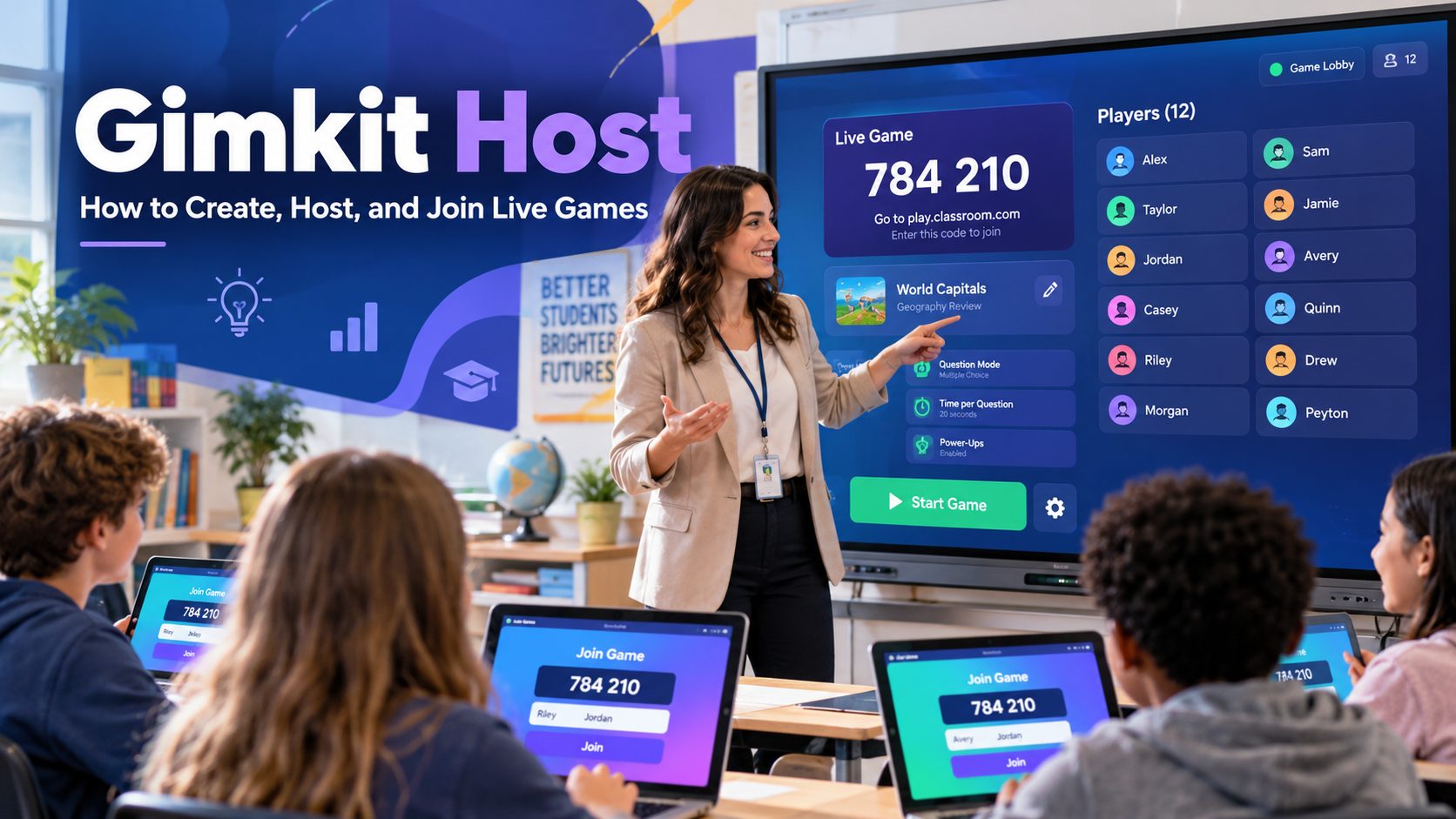
Gimkit Host allows teachers and educators to create, launch, and manage interactive learning games in real time. To host a Gimkit game, sign in to your account, select a question kit, click “Play Live,” choose a game mode, configure the settings, and share the game code with participants.
Students can join through the official Gimkit Join page using a game code, QR code, or invitation link. Most students do not need an account to participate in a live game.
Gimkit combines educational questions with interactive gameplay, allowing teachers to turn ordinary classroom reviews into competitive or collaborative activities. Rather than simply answering questions on a worksheet, students participate in games where their answers influence their progress.
This guide explains how Gimkit hosting works in 2026, including account setup, game creation, joining instructions, available game modes, subscription limitations, classroom controls, and solutions to common technical problems.
What Is Gimkit Host?
Gimkit Host refers to the tools educators use to run live learning sessions through Gimkit.
Gimkit is a browser-based educational platform built around question sets called kits. A kit contains questions and answers related to a particular subject, lesson, or learning objective.
When a teacher hosts a live game, Gimkit uses the selected kit within a game mode. Depending on that mode, students might earn virtual money, collect resources, complete challenges, or collaborate with classmates by answering questions correctly.
The hosting interface provides teachers with control over participation, game settings, progress, and when the session ends.
The main difference between hosting and playing is responsibility. Teachers organize and manage the session, while students join and participate.
| Feature | Gimkit Host | Gimkit Join |
|---|---|---|
| Main purpose | Create and manage sessions | Participate in sessions |
| Typical user | Teacher or educator | Student or player |
| Account required | Yes | Usually no |
| Select game modes | Yes | No |
| Configure settings | Yes | No |
| Share game codes | Yes | Receives code |
| View game reports | Yes, for eligible hosted kits | No host-level access |
According to Gimkit’s official documentation, educators need an account to host games, but student accounts are optional for ordinary live participation.
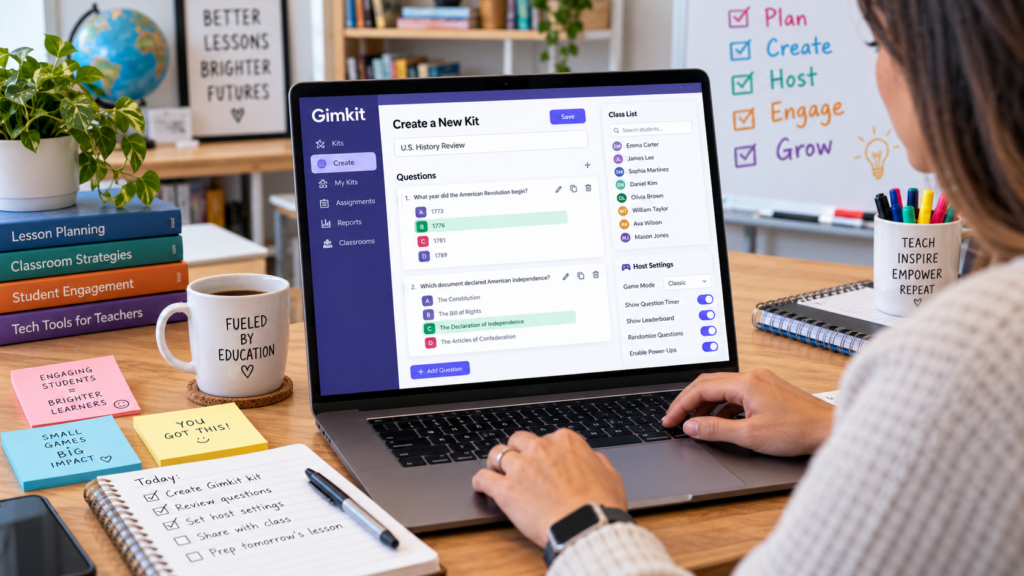
How to Host a Gimkit Game: Step-by-Step Instructions
Hosting a live game does not require programming skills or advanced technical knowledge. Gimkit provides a guided interface for selecting questions, choosing a game mode, and inviting students.
Step 1: Open your Gimkit dashboard
Visit the official Gimkit website and sign in with your educator account. The Gimkit Dashboard displays your available kits and tools for managing classroom activities.
Step 2: Select a kit and game mode
Find the kit you want to use and click Play Live. The Mode Picker will display available Gimkit Games. Choose the mode that matches your lesson and click Continue.
Step 3: Configure your game settings
Choose the available game options, which may include a time limit, game goal, nickname settings, class connection, and permission for late joining. Options vary by game mode.
Step 4: Share the code and start
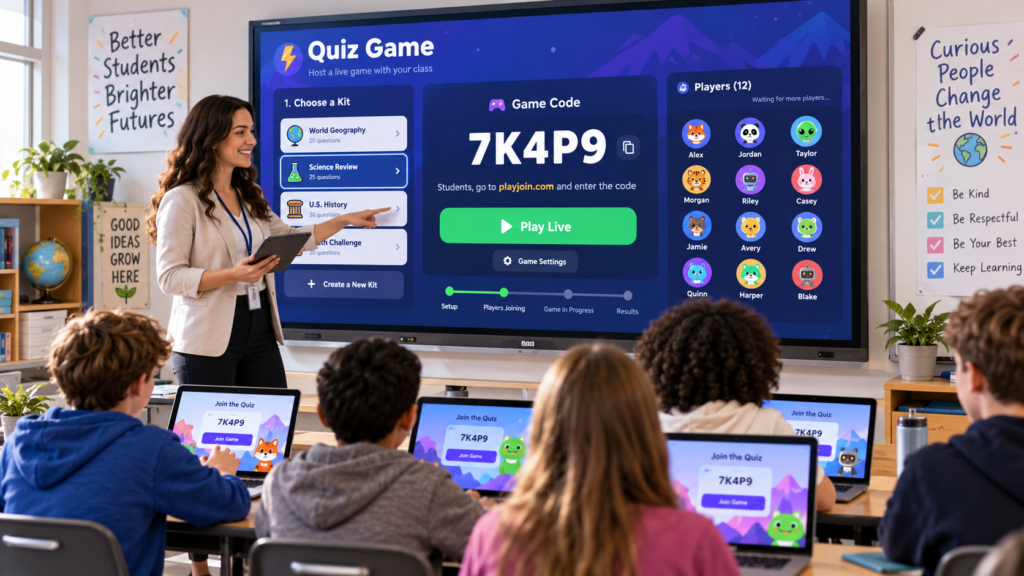
Continue to the game lobby, where Gimkit displays the session’s join code. Share the code, direct link, or QR code. When participants have joined, click Start Game.
These steps follow Gimkit’s official live-hosting instructions. Once gameplay begins, the host can manage participants and use the available controls to monitor or end the session.
Can You Host Gimkit Without Paying?
Yes. Gimkit Basic allows educator accounts to host live games without a paid subscription.
However, the free plan does not offer unrestricted access to every game mode. Gimkit rotates a selection of featured modes that Basic users can access without the five-player restriction applied to Pro-exclusive modes.
Teachers who need access to every mode or additional features can consider Gimkit Pro.
Gimkit Join: How Students Enter a Live Game
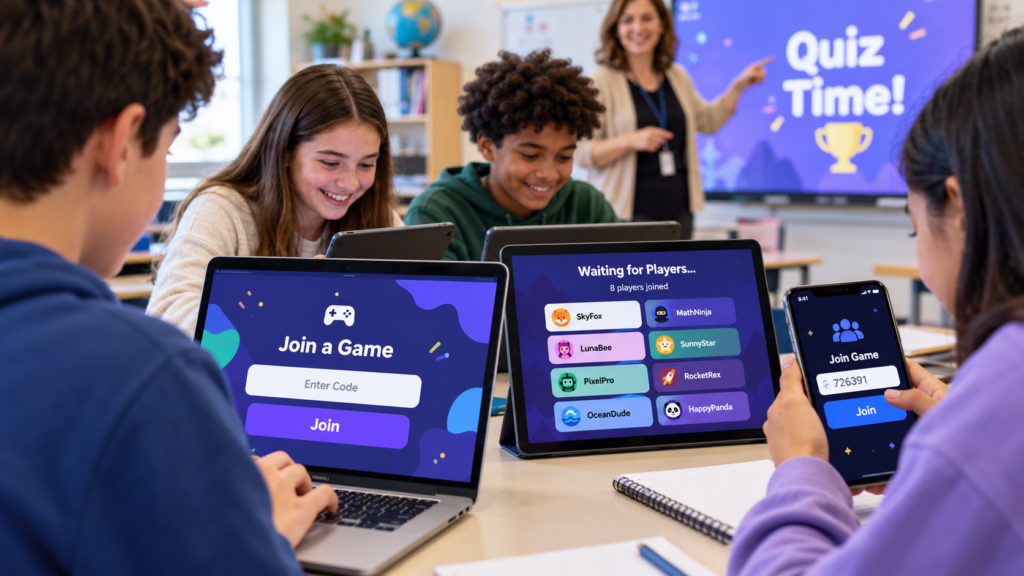
The Gimkit Join process allows students to enter a teacher’s live session using an invitation code or link.
Students searching for Gimkit/Join, Gimkit Join Code, or Join Gimkit generally need the same official joining page.
To participate, students should follow these instructions:
- Open the official Gimkit Join page.
- Enter the game code provided by the teacher.
- Submit the code to access the game lobby.
- Enter a display name or accept the automatically generated nickname.
- Follow the teacher’s instructions and begin playing when the game starts.
Teachers can also provide a QR code or direct invitation link. These alternatives can reduce the time required to enter the session, especially when many students are joining simultaneously.
If students are already signed in and belong to a connected Gimkit Class, they may be able to join without manually entering the game code.
Gimkit’s official joining instructions confirm that students can use a code, link, or QR code to participate.
Where Can You Find a Gimkit Code?
A Gimkit Code is displayed on the host’s game screen after the session has been configured.
The host can project the code in the classroom, share it through a communication platform, or copy the corresponding invitation link.
Students cannot simply generate a working code for another teacher’s session. They need joining information from the person running the game.
If a code does not work, the student should ask the host to confirm that the session is active and that the code has been entered correctly.
Gimkit Login: Creating and Accessing Your Account
Teachers must have an account to create kits and host games. Gimkit supports account registration through Google or email.
To begin, visit the official Gimkit Login page if you already have an account, or use the signup page to register.
During registration, Gimkit asks users to choose between an Educator and Student account.
Educator accounts are intended for creating instructional materials, organizing classes, and hosting learning activities. Student accounts support features such as joining classes and maintaining individual progress within eligible activities.
New accounts receive a 14-day Gimkit Pro trial, according to the platform’s account documentation. After the trial, an educator can continue using the free Basic plan without purchasing Pro.
Gimkit Home and Dashboard Explained
The phrase Gimkit Home commonly refers to the platform’s main website or the account dashboard.
The Gimkit Dashboard is the primary workspace for educators. It brings together the materials and management features needed to organize classroom games.
Depending on the user’s account and subscription, the dashboard provides access to kits, classes, assignments, reports, and account settings.
It also gives teachers a practical starting point for creating, editing, and hosting activities.
Users searching for “Login Gimkit” should use the official sign-in page rather than an unrelated website offering account access.
Gimkit Create: How to Make a Gimkit Quiz
Before starting a classroom game, teachers need a question kit.
The Gimkit Create feature lets educators build customized quizzes containing subject-specific questions and answers.
To Make a Gimkit from scratch, open the dashboard and select New Kit. Enter the kit name, subject, and language, then choose a cover image.
Next, add questions with their correct and incorrect answer choices. Once the content is ready, select All Done to return to the dashboard.
Teachers can also use Gimkit’s Question Bank to find questions from publicly available kits and add them to their own materials.
Another option is importing questions through a supported spreadsheet template saved as a CSV file. This can be particularly useful when educators already have a collection of questions prepared elsewhere.
Creating Questions That Support Learning
The quality of a Gimkit session depends heavily on the questions used.
A useful kit should focus on specific learning objectives rather than combining unrelated facts. Questions should be clear, appropriately challenging, and based on material students have studied.
For example, a teacher preparing a biology revision lesson might create a kit covering cell structures and their functions.
The questions could ask students to identify organelles, distinguish plant cells from animal cells, or explain what mitochondria do.
Teachers should review every question before hosting. Questions imported from other sources may require corrections, clearer wording, or adjustments to match the class curriculum.
Gimkit Live: Understanding the Available Game Modes
Gimkit Live is the platform’s real-time gaming experience.
Unlike traditional quizzes that rely primarily on answering questions and collecting points, Gimkit offers game modes with additional mechanics such as movement, resource collection, cooperation, and competition.
Different modes are suited to different classroom activities.
Don’t Look Down
A platforming challenge in which players answer questions to gain the energy needed to climb obstacles and reach higher areas. It combines academic recall with movement and timing.
One Way Out
A cooperative adventure where students work together to escape a spaceship. Correct answers help players obtain energy and progress through the mission.
Snowbrawl
A competitive mode in which participants answer questions to earn snowballs and compete against other players.
These modes illustrate how Gimkit combines knowledge-based questions with interactive game mechanics. The available selection can change, and some modes require a Pro subscription for larger groups.
How Should Teachers Choose a Mode?
The best mode depends on the purpose of the lesson.
A collaborative game may suit a class where students need to practise teamwork, while a competitive game could be appropriate for a short revision activity.
Teachers should also consider the students’ ages, familiarity with controls, available classroom time, and the difficulty of the questions.
Gimkit’s Mode Picker includes descriptive labels that help educators identify gameplay styles, including strategic, collaborative, and calming experiences.
The most visually exciting option is not automatically the best educational choice. A useful game should reinforce the intended learning objectives rather than distract students from them.
Gimkit Host Game Settings and Classroom Controls
One of Gimkit’s important hosting features is the ability to customize how a session operates.
The Game Options screen includes standard settings as well as additional controls that depend on the selected mode.
| Setting | Purpose |
|---|---|
| Game goal | Determines when the session ends |
| Join in Late | Controls whether additional participants can enter after the game begins |
| Nickname Generator | Assigns automatically generated names to students |
| Connect a Class | Associates the activity with an existing class |
| Mode-specific options | Adjusts particular gameplay mechanics |
| Game balance | Changes how questions contribute to progress in supported 2D modes |
The Nickname Generator can be useful when teachers want to limit inappropriate or distracting display names.
Similarly, disabling late joining can help reduce unwanted entries once all expected students have arrived.
Gimkit also offers balancing options for 2D games. These can affect how much energy, bait, or other resources students receive for correct answers, depending on the mode.
Can the Host Play Along With Students?
Yes. In Gimkit’s 2D modes, the host can choose to participate as a player or observe as a spectator.
Spectator mode is particularly useful when the educator wants to focus on classroom management rather than gameplay.
The host can monitor participants, access game controls, and end a game when appropriate.
In supported modes, the host can also examine gameplay information and use controls to manage the session.
Gimkit Pricing: Basic vs. Pro in 2026
Gimkit offers a free Basic plan and a paid Pro subscription for educators.
The free plan is suitable for teachers who want to create kits and run live classroom games using featured modes.
Pro is intended for educators who need broader game-mode access and additional instructional features.
| Feature | Gimkit Basic | Gimkit Pro |
|---|---|---|
| Account creation | Free | Free account with paid upgrade |
| Create question kits | Yes | Yes |
| Host featured live modes | Yes | Yes |
| Unrestricted game-mode selection | No | Yes |
| Game reports | Yes | Yes |
| Create classes | Yes | Yes |
| Homework assignments | No | Yes |
| Upload question images | Restricted | Yes |
| Audio questions | No | Yes |
Gimkit’s official Pro FAQ, updated in May 2026, lists $14.99 per month and an annual subscription of approximately $60. Notably, the same help article shows two slightly different annual figures, $59.88 and $59.98. Teachers should verify the exact amount on Gimkit’s checkout screen before paying.
There are also group subscriptions for schools and departments.
How Many Players Can Join a Gimkit Game?
Gimkit’s official hosting documentation specifies several important limits:
- Standard live games have a hard limit of 500 students.
- All 2D game modes have a hard limit of 60 students.
- Basic accounts are limited to five players when hosting Pro-exclusive modes.
- Student accounts hosting games generally have a five-player limit, with separate rules for Gimkit Creative.
These figures are platform limits rather than guarantees that every network or device can support the maximum number of players smoothly.
Schools planning large sessions should consider the reliability of their internet connection and confirm that the chosen game mode supports the expected audience.
Gimkit Reports: Tracking Student Performance
Gimkit’s usefulness extends beyond the game itself.
After hosting a kit they own, teachers can access reports containing class-level and individual performance information.
The official reporting system includes a Student Overview, General Overview, and Question Breakdown.
These reports help educators understand which questions students answered correctly, where mistakes occurred, and which concepts may need additional instruction.
For example, if a class performs well on basic mathematics questions but struggles with fractions, the teacher can use that information to guide the next lesson.
Reports can be accessed after a session or later through the dashboard, and they can be saved as PDF files.
However, game results should not automatically be treated as a complete measurement of student ability. Gameplay speed, individual strategies, technical conditions, and familiarity with the mode can influence performance.
Teachers should interpret Gimkit reports alongside ordinary classroom assessments and other evidence of learning.
Gimkit Play vs. Homework Assignments
Gimkit Play generally refers to participating in a live or otherwise available Gimkit activity.
A live game is organized around a session controlled by a host. Students join the session and participate according to the selected game’s rules.
An assignment is different because students can complete it independently.
Gimkit Pro supports assignments that teachers can distribute using an invitation link. Depending on the selected mode and settings, students complete the activity by reaching a defined goal.
This makes assignments useful for homework, distance learning, revision, and independent practice.
Gimkit also offers a simpler practice option for reviewing questions without the full game mechanics or reporting experience.
Common Gimkit Host and Join Problems
Even though hosting is relatively straightforward, technical and account-related issues can interrupt a session.
1. Gimkit Join Code Is Not Working
An invalid code may indicate a typing mistake, an inactive session, or an incorrect invitation.
Students should confirm the code with their teacher and use the official joining page. If the problem continues, the host can copy and share the direct invitation link instead.
2. Students Cannot Join the Game
First, confirm that the session has been created successfully and that late joining is permitted if the game has already started.
If students have been assigned to a Gimkit Class, verify that they are signed into the appropriate accounts.
Teachers should also check whether the selected game mode or account type has reached its player limit.
3. Gimkit Is Not Connecting to the Game Server
School firewalls, network filtering, and proxy settings can interfere with real-time games.
Gimkit recommends checking its service status and using the compatibility test available at gimkit.com/check.
The official troubleshooting documentation explains that Gimkit uses secure WebSocket connections and that network restrictions affecting its game servers can prevent gameplay from functioning correctly.
4. Gimkit Login Is Not Working
Users who have forgotten their passwords can use the password recovery option on the official login page.
If signing in through a school-managed Google account fails, the problem may involve administrator restrictions.
Gimkit advises schools to review whether the service is approved within their Google Workspace for Education environment.
5. A Student Is Using an Inappropriate Name
Teachers can enable Gimkit’s Nickname Generator before a session begins.
They can also connect an existing class to help manage student identities.
For non-2D games, Gimkit provides host actions that include removing unwanted participants from the game.
Gimkit Hacks: Safety, Cheating, and Account Protection
People searching for Gimkit Hacks may be looking for shortcuts, automated answers, unofficial game modifications, or methods of gaining an unfair advantage.
However, websites claiming to offer unlimited in-game currency, guaranteed answers, or special administrator access should be treated cautiously.
Unverified scripts and browser extensions can introduce security risks, particularly if they request account credentials or unnecessary browser permissions.
Teachers who suspect cheating should focus on evidence rather than automatically assuming that unusually high scores indicate misconduct.
Gimkit’s own guidance recommends examining game reports, question accuracy, unusual performance patterns, and what happens when students are observed during gameplay.
For account security, teachers and students should use official Gimkit pages, avoid sharing passwords, and follow their school’s technology policies.
Schools should also review Gimkit’s student data privacy information before introducing the platform into their classrooms.
Tips for Hosting More Effective Gimkit Games
A successful game requires more than choosing an entertaining mode.
Teachers should prepare questions that match the lesson, ensure students understand the activity’s rules, and leave enough time to discuss the results afterward.
For an ordinary classroom review, a practical approach is to begin with familiar questions, introduce more challenging material gradually, and review the topics students found difficult.
It is also useful to test the game before students join. Checking the selected mode, question set, participation settings, and projected screen can prevent avoidable interruptions.
Finally, teachers should avoid placing excessive emphasis on winning. The educational value comes from answering questions, recognizing mistakes, and improving understanding, not simply finishing ahead of classmates.
Frequently Asked Questions About Gimkit Host
1. How do I host a Gimkit game for free?
Create a free Gimkit Educator account, select or create a kit, click Play Live, and choose an available featured game mode. Configure the settings and share the join code with students. Gimkit Basic supports free live hosting subject to its mode-specific restrictions.
2. Can students join Gimkit without logging in?
Yes. Students can join ordinary live games without creating accounts by entering the host’s code at the official Gimkit Join page. Accounts are needed for certain additional features, including participation through connected classes.
3. How do I get a Gimkit Host Game code?
The hosting interface generates a game code when the teacher sets up a live session. The code appears in the lobby and can be shared with students. There is no need to purchase or request a separate code.
4. Can I host Gimkit on a phone?
Gimkit operates through a web browser, but teachers should confirm that their device and browser support the required interface and game mode. A computer is generally more convenient for adjusting host settings, reviewing participants, and displaying the game to a classroom.
5. What is the difference between Gimkit Create and Gimkit Host?
Gimkit Create is used to build or edit question kits. Gimkit Host is used to launch those kits within live game modes and manage participation. Teachers generally prepare the questions before starting the session.
6. Is Gimkit free for teachers and students?
Gimkit provides free account creation and a Basic plan for educators. Students can join ordinary live sessions without paying. Gimkit Pro is an optional subscription offering additional game modes, assignments, and content-creation features.
For more general news.

Catherine Rusoff Ethnicity: Background, Heritage and Family

Blooket Host: How to Host, Join, and Play Games

Gimkit Host: Complete Guide to Hosting and Joining Games
Gimkit Host: Complete Guide to Hosting and Joining Games